This article explains how to return activations for Unity Pro, Industry, or Enterprise licenses when you need to move your license to a different machine. It outlines steps based on the type of license: Named User Licenses (NUL) are released by signing out of Unity Hub, while serial key activations must be manually removed through Unity’s Cloud or Unity ID portals. These instructions help ensure your license is available for use on another device when needed. ✨
Unity licenses are intended for individual use and can be activated on up to two machines at once, per user. You can return your activations and manage your licenses using the Unity Hub and your Unity account, depending on the license type and how it was activated.
Unity uses two types of licensing systems: modern Named User Licenses (NUL) and legacy serial-based licenses.
Named User Licenses
These are used with Unity’s Pro, Industry and Enterprise plans. Once a license seat is assigned, the license is linked directly to your Unity ID, eliminating the need for serial keys.
- The license is automatically activated when you sign in to Unity Hub.
- It is automatically returned when you sign out of the Unity Hub.
- This makes it easy to switch between devices without managing activations manually.
To manage or reassign subscription seats, please see the article 'How do I assign a seat to a user?'
Serial-Based Licenses
This is the older system that uses a serial key that you can use to activate through the Unity Hub or via the command line.
The license is locked to the machine it’s activated on.
To reuse it on another device, you must manually return the license from the original one.
Some users may prefer this method for scenarios such as automated testing and builds, or situations that require a manual activation.
| Note: Unity’s Pro, Industry and Enterprise plans still allow serial key activation when needed. However, since NUL is the primary system, using a serial key in some cases may result in two activations on the same machine: one from the NUL and one from the serial key. |
The process for returning a license differs depending on how you activated it, either using the Named User License (NUL) process or the legacy serial-based method.
Returning a Named User License (NUL) activation
If you see an "Entitlement" activation listed in your Unity Dashboard, it means you've activated it using NUL.
To return your license, simply sign out of the Unity Hub on the machine you wish to deactivate. This automatically removes the activation, allowing you to sign in and use your license on another computer.
Returning a Serial-Based license activation
| Important: The solutions here are for online activations only. If you have activated your license manually/offline, contact Unity Customer Experience with your serial key, and the team will reset your activations. |
If you activated with a serial key, the solution depends on where your subscription is managed.
| Note: Users also have the option to return activations via the command line. |
Subscriptions managed at cloud.unity.com
To return activations for a license key housed on the Unity Cloud Dashboard, follow the steps below:
- Navigate to cloud.unity.com and sign in using your Unity ID credentials.
- In the top right corner, click to open your profile icon. Select Switch organization and select the organization that holds your license.
- Select Administration > My Products from the left side menu.
-
Select your subscription.
Note: If you do not see your subscription on this page, it will be housed in the Unity ID portal. Click here to jump to your resolution. - You can manage the license seat by assigning or revoking the seat. If the user is assigned the seat and logs out, it will auto-activate and return the activation.
| Hints: An activation made using the Hub will always appear as Unity version 2017.2.0. |
Subscriptions managed at id.unity.com
- Sign in at id.unity.com.
- Click My Seats on the left side of the page.
-
Scroll down to the Activation window. Here you can see how many activations you have used and which machines you have activated on.
Note: If you can't see your license key here, your subscription may be housed on the Unity Cloud Dashboard. Click here to jump to your resolution. - Click the checkbox next to the machine you want to remove and click Remove selected activations.
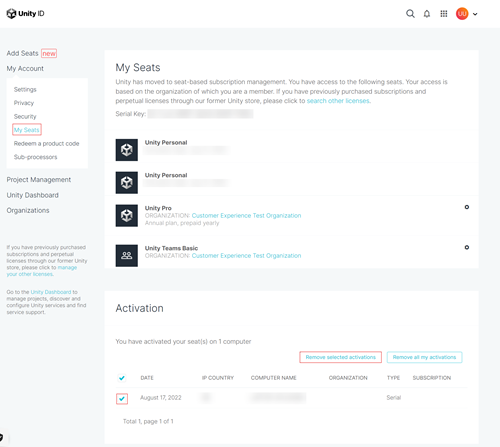
Alternatively, to remove all activations for your license key, click Remove all my activations.

Educational Grant, Perpetual, & assigned 'X4' licenses
To return the activations on your license key, follow the below steps:
- Sign in at id.unity.com.
- Click manage your other licenses. on the left side of the page.
- Click Remove all my activations button to release all the activations for your license key. Alternatively, if you do not wish to remove all activations, select the checkbox next to the individual machine you want to remove and click Remove selected activations.