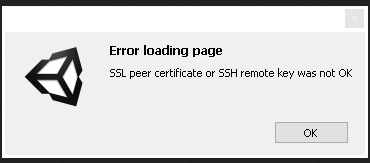
This Unity license error is typically caused by connectivity issues during SSL certificate validation. To resolve, disable VPNs, firewalls, and proxies, ensure Unity domains are safelisted, check system time, use a strong network connection, update root certificates, and consider manual activation for Unity 4.x. If problems persist, contact Unity support with log files for assistance.
Cause
This error is most frequently caused by a connectivity issue between your machine and our Unity license servers, when validating SSL certificates. It can be resolved by adjusting your machine or network settings, or by performing a manual activation.
Resolution
To resolve this error, follow the troubleshooting guide below:
- Temporarily disable any VPNs, Firewalls, Anti-Virus or Proxies. Custom web-filtering software, corporate proxies, or the use of VPNs and anti-virus software can interrupt the secure connection to Unity's servers.
- Add Unity domains to your safelist: If you are on a restricted network (such as a corporate or university connection), please verify that ports 80 and 443 are open. You will also need to add our required domains:
unity3d.com,hub.unity3d.com,api.unity.com) is often necessary
- Check your system time is correct: SSL certificates rely heavily on timestamps. Even a slight discrepancy in your computer's date, time, or time zone will automatically cause SSL certificate validation to fail.
- Weak or inconsistent connect: You must ensure that you have a strong network connection to connect to Unity's servers. If possible, switch from Wi-fi to a wired connect or use an alternate connection method.
- Outdated Root Certificates: If your operating system's Certificate Authority (CA) root certificates are outdated, it won't be able to verify modern SSL connections. This is especially common on Linux distributions. Running
sudo apt-get install --reinstall ca-certificatesin your terminal may be required. Please note that Ubuntu is our officially supported Linux distribution; using unsupported distributions can sometimes lead to unexpected authentication errors.
- Unsupported Activation Method: Unity 4.x no longer supports online activation as of September 2018. Performing a manual activation is the best workaround for this if you wish to continue using Unity 4.x.